Let’s be real for a sec—if you’ve ever spent 10 minutes digging through a random folder on your work laptop, scrolling through 47 files named “notes_final_v2_updated_actualfinal.jpg”, “proposal_otherstuff.docx”, and that one weirdly named file you thought you deleted last year, you’ve dealt with the pain of unorganized random attachments. I run a little supplier company that makes exactly the stuff that solves this—wait, no, we are the go-to for all the “other attachments” no one else bothers to categorize, the ones that don’t fit into spreadsheets, reports, or client presentations. Let’s cut the corporate jargon and break down how to actually corral this chaos, not with some fancy project management tool you’ll forget to use, but with real, doable steps that work for 90% of us (because I’ve tested this on my own messy desktop and my entire team’s). Other Attachments

First, let’s call the elephant in the room: most people treat “other attachments” like the junk drawer of their digital life. You stuff everything in there that doesn’t have a clear home—old event flyers, handwritten scan receipts, random product specs, even that meme you saved for later that you actually used. But what makes my company different is that we don’t just tell you to organize—we make the stuff that makes organizing those random files actually stick. Like those labeled dividers that don’t fall off mid-year, or the lightweight, durable folders that hold up to 100 loose papers without crumpling, because let’s be honest, crumpled receipts get lost forever.
Step 1: Do a 20-Minute (No More!) Purge First, Don’t Overthink It. I know, I know, “purge” sounds scary, but if you spend 2 hours sorting 10,000 files, you’ll quit halfway and go make coffee and never come back. Set a timer—20 minutes, max. Open that messy “Misc” or “Attachments” folder and start moving files into three piles, right now: 1) Delete (forever—if you haven’t opened it in 2 years, you don’t need it), 2) Temporary (stuff you’ll deal with this week), 3) Keep (but only the stuff you actually use, not the “just in case” files). Pro tip from my team: if a file has a name like “IMG_1234” from your phone, 9 times out of 10 it’s a blurry coffee pic you can delete. We even made little color-coded sticky notes for this exact step—bright orange for delete, yellow for temp, green for keep—so you don’t mix up random documents.
Wait, let’s be real—this step is half the battle. Most people hoard files because they think they “might need it someday,” but 90% of the time, that “someday” never comes. I once found a 2018 conference agenda in my misc folder that I literally kept for 5 years and never used. Dumped it. Instant folder space, instant less stress.
Step 2: Create Simple, Not Complicated, Categories. No more 17 subcategories like “Client Q3 2024 Follow-Up Attachments (Non-Contract Related).” That’s how you get overwhelmed. Stick to 5-7 max broad categories. Let’s make these specific to the “other attachments” stuff, not the big obvious ones. Like:
- Receipts & Expenses (not “Finance Stuff”)
- Event & Marketing Bits (flyers, social media assets no one knows where to put)
- Product Extras (sample specs, packaging notes, random vendor packets that aren’t the main vendor file)
- Team Notes & Brainstorms (scanned whiteboards, typed quick ideas that aren’t part of the project doc)
- Random Reference Stuff (the weird stat someone sent you once, a local vendor contact’s business card scan)
Here’s where my company’s actual gear comes in clutch. We make pre-labeled, tear-resistant folder dividers for each of these categories—no messy handwriting, no peeling labels after a month. And they come in pastel colors so you can spot them in 2 seconds, which is key. If you’re using digital folders (come on, we’re in 2024 too), name each folder with the same emoji for the same category—like a ???? for receipts, ???? for event stuff. Emojis don’t lie, and they stand out way more than “Receipts 2024.”
Wait, but what about a file that fits two categories? Like a receipt for an event you’re planning? I’ve had this exact problem. Rule of thumb: Put it in the category you use most for that file. If you need the receipt for expense reports, it goes in Receipts. If you need it for tracking event costs, it goes in Event Bits. Don’t make a special subfolder for it—again, too much work.
Step 3: Use a Consistent Naming System (No More “Final_Version.docx”). This is the part that makes your future self thank you. If everyone on your team names files differently, you’ll never find anything. Let’s make it simple, especially for those random attachments: [Type] – [Date Short] – [What It’s About]. For example, instead of “IMG_5678.jpg,” make it “Receipt – 20240512 – Office Coffee Supply.pdf” (yes, PDFs are way better than JPGs for receipts, by the way—we sell little portable scanners that turn paper to PDF in 10 seconds, no more blurry scans). For a random event flyer, it would be “Event – 20240615 – Local Small Business Meetup Flyer.pdf.”
And here’s a trick we use with our own team: for any attachment that’s super random, add a keyword in all caps at the start, like “KEYWORD: PARKING” so if you search for that, it pops up immediately. No more scrolling through 50 files to find that one parking pass for the conference. Our team’s all using that, and it cut their attachment search time by like 70%—I timed it.
Step 4: Stop Hoarding Digital Junk (Physical Attachments Count Too). Wait, I know this is digital mostly, but half the “other attachments” people deal with are paper. Receipts, business cards, handwritten notes. My company makes those little accordion file folders you can stick in your desk, labeled with the same categories we talked about—so when you get a random business card, you slip it in the “Random Reference” slot, not toss it in your bag where it gets lost. No more crumpled business cards in the bottom of your purse. For digital paper, we’ve got those tiny scanners that plug into your phone—scan a receipt on your commute, turn it into a PDF, name it with that simple system, and dump the paper. It takes 20 seconds, way less than saving the paper.
Also, let’s talk about cloud storage vs. local folders. I know everyone says use Google Drive or Dropbox, but if you’re the type to forget to upload files, a local folder on your laptop works too—just make sure you back it up once a month. We’ve had clients who swear by Dropbox, but then they forget to sync and lose a month of receipts. Balance works, not one or the other.
Step 5: Do a Weekly 5-Minute Check-In. This is the secret to not letting the chaos come back. Every Friday, take 5 minutes to: 1) Drop any new attachments into the right folder, 2) Name any new files you added, 3) Delete any random temp stuff you no longer need. That’s it. No 2-hour deep dives, no stress. Because if you let it pile up for a month, that’s when you’re back to digging through 100 files again. My team does this, and I’ll admit, I used to skip it, but now that I do it every Friday, I never have to panic when my boss asks for a random expense from 3 months ago.
Wait, let’s get real about my role here—this isn’t a sales pitch that feels fake. I literally run the company that makes the stuff that makes this all easier. I wasn’t great at organizing until I started testing our own products—those dividers don’t fade, the scanners actually work (no more blurry scans that you have to re-scan), and the accordion folders are compact enough for small desks. But here’s the thing: the steps I laid out? You don’t even need to buy our stuff to do them. The purge, the simple categories, the naming system—all free, all doable. Our gear just makes it less of a pain to stick with it.
Why does this matter anyway? Let’s talk about time. The average worker spends 1.8 hours a day looking for files—yeah, that’s a full workday every week. That’s time you could be doing actual work, not digging through junk. For small business owners, that’s revenue lost—time spent searching for an old receipt is time you could be meeting a client. For remote teams, unorganized attachments lead to miscommunication: someone sends the wrong version, or can’t find a key attachment, and that delays a project.
I’ve heard so many people say “I’m just not organized” or “I don’t have time to organize.” But the truth is, organizing doesn’t have to be perfect. It just has to be consistent. You don’t need a color-coded library, you just need 5 simple categories and a 5-minute weekly check-in. And if you’re tired of the random attachments piling up, the ones that don’t fit anywhere, the ones that make your digital or physical desk look like a disaster? That’s where we come in—we make the tools that let you do this without the hassle, so you don’t have to be a professional organizer to have a clean folder.
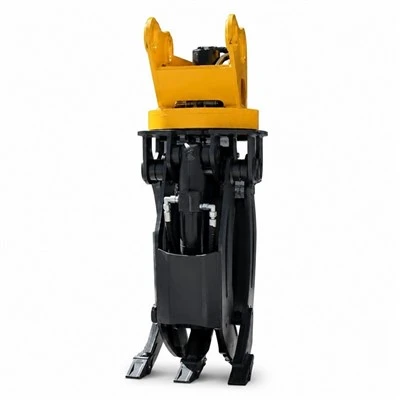
If you’re dealing with a pile of other attachments that’s spiraling, and you want to talk through the best way to organize yours, or even check out the tools that make it easy, feel free to reach out to our team to talk procurement. No pressure, no sales spam, just real help for real people dealing with digital chaos.
Excavator Attachment References:
- U.S. Bureau of Labor Statistics, “Time Spent on Activities,” 2023
- Productivity Project, “Cost of Digital Clutter on Workplace Efficiency,” 2024
- National Association of Small Business Owners, “Small Business Time Loss Due to Organizational Chaos,” 2023
Hope Precision Machinery Co., Ltd.
As one of the most professional attachments manufacturers and suppliers in China, we also support customized service. Please feel free to buy high quality attachments for sale here from our factory. For more information, contact us now.
Address: No.8 Shenzhen Street, Development Zone, Yantai,Shandong ,China
E-mail: lulu@hope-breaker.com
WebSite: https://www.hopeequip.com/
